The dev loop
Run your bot locally with seedcord dev, which reloads a changed file without restarting the process. Covers what its terminal shows, the keys that drive it, filtering the log, small windows, the log files, and the health server.
If you run your bot under a plain file watcher, every save restarts the whole process. A gateway bot then logs in to Discord again, which takes a few seconds, and Discord caps how many new gateway sessions a bot can start in a day. The logs from before that restart are gone from your terminal too. Your bot prints every line to one stream, so reading your handler's output means scrolling past the framework's, or piping the whole thing through grep and losing the colors.
seedcord dev keeps your bot connected to Discord while you edit. When you save a handler, seedcord swaps the new version into the running bot without restarting the process. Hot reload lists the saves that still need a restart. Its log pane filters by channel and level, so you can read one part of your bot while the rest keeps running.
pnpm run devYou don't pass it any flags. Every setting it reads comes from seedcord.config.ts, or seedcord.config.mts.
What the terminal shows
Once it starts, your terminal turns into a console for the bot. The wide pane on the right shows every line logged through seedcord's logger. It keeps the most recent 1,000 lines, so older ones drop off as new ones arrive. A narrow sidebar on the left shows which phase the bot is in, how long it has been up, the log filters, and the keys you can press.
The keys
| key | what it does |
|---|---|
q | quits |
Ctrl-C | one press arms it, a second quits. Any other key in between disarms it |
r | stops the bot, then starts it again |
d | stops a running bot but leaves the terminal up. The status then reads "Disconnected. Press r to restart." |
c | empties the log pane |
↑ ↓ | scroll one line |
PageUp PageDown | scroll one screen |
Home or t | go to the first log line |
End or b | go to the last log line |
y n | answer the re-register prompt after you change a command |
The scroll keys work at any time, even while the bot is starting or shutting down. r, d, and c act on the bot itself, so they wait until it's idle.
Filtering the log
A busy bot prints more lines than you can read, though usually you only care about one part of it. Every log line carries a channel and a level, which Logging explains. The five levels are error, warn, info, debug, and trace, while your channels depend on what your bot and its plugins log to. The sidebar draws both sets as two rows of small chips, and four keys move the cursor across those chips.
| key | what it does |
|---|---|
← → | move the cursor along the chips |
Tab | switch between the channel row and the level row |
o | hide or show the chip under the cursor |
Space | show only the chip under the cursor. Press it again on the same chip to show everything |
The terminal starts with every chip lit, so you see every line. Pressing o on a chip hides that channel or level. To read one plugin's lines, move to its channel and press Space.
When the terminal is small
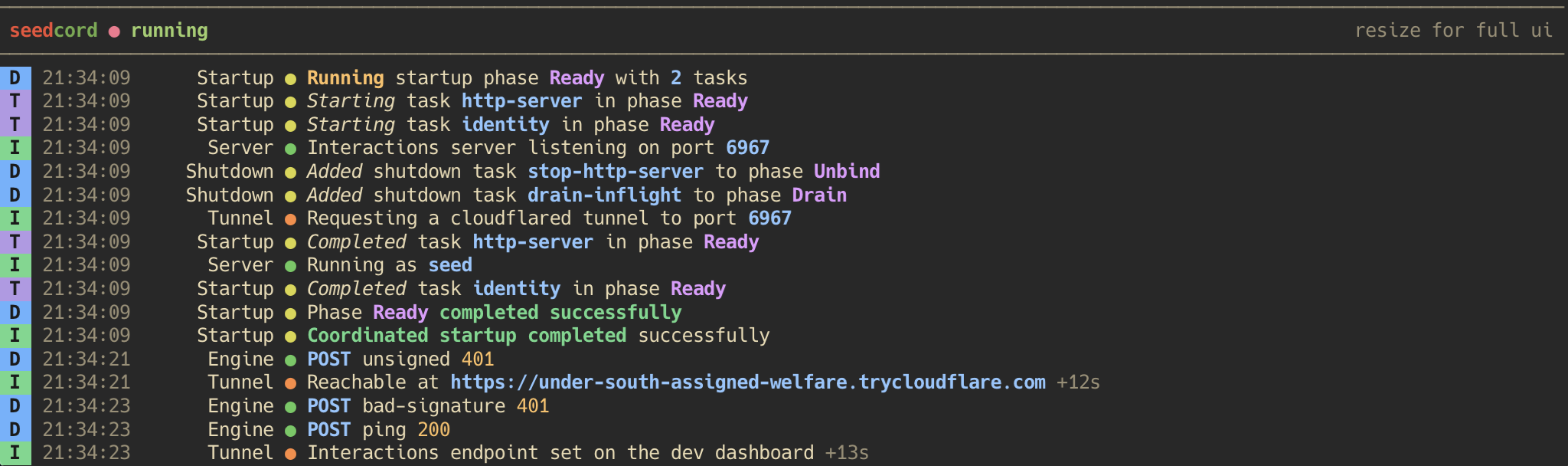
A window at least 30 rows tall and 80 columns wide gives you the sidebar, the filter chips, and the log pane together. Below 30 rows the chips disappear first, the four filter keys stop working, and the sidebar tells you to resize if you want them back.
Below 21 rows, or under 80 columns wide, the sidebar disappears too. A single status line above the logs replaces it. Your logs and the scroll keys work at every size.
Where the logs go
The terminal fills your whole console while it runs, so the log pane is the only place those lines appear on screen. seedcord also writes every line to a file under logs/, so a restart or the 1,000-line limit doesn't lose them. When you quit, it prints that folder.
seedcord dev stopped. logs: logs/Note
Every run writes its own file there, and seedcord never deletes the old ones. Delete them yourself once the folder grows large.
The health server
Under seedcord dev, a gateway bot opens the same health server your host calls in production. Building covers what it answers and how to configure it.