Create your Discord application
Set your bot's application up in Discord's developer portal before you write any code. Covers the token, the intents you turn on, the public key an http bot verifies requests with, and adding the bot to a server.
Your bot needs an application on Discord's side before any code runs. Every step on this page happens in the Discord Developer Portal (opens in a new tab). Start with New Application, top right.
Get the token
Open Bot in the sidebar. Discord shows a token once. Reset Token gives you a new one and invalidates the old.

Keep it somewhere safe. You paste it in when you set up the project.
Warning
The Client Secret on the OAuth2 page is a different credential. Don't paste it where the token goes.
Turn on the intents you need
Gateway only
An http bot holds no gateway connection and declares no intents.
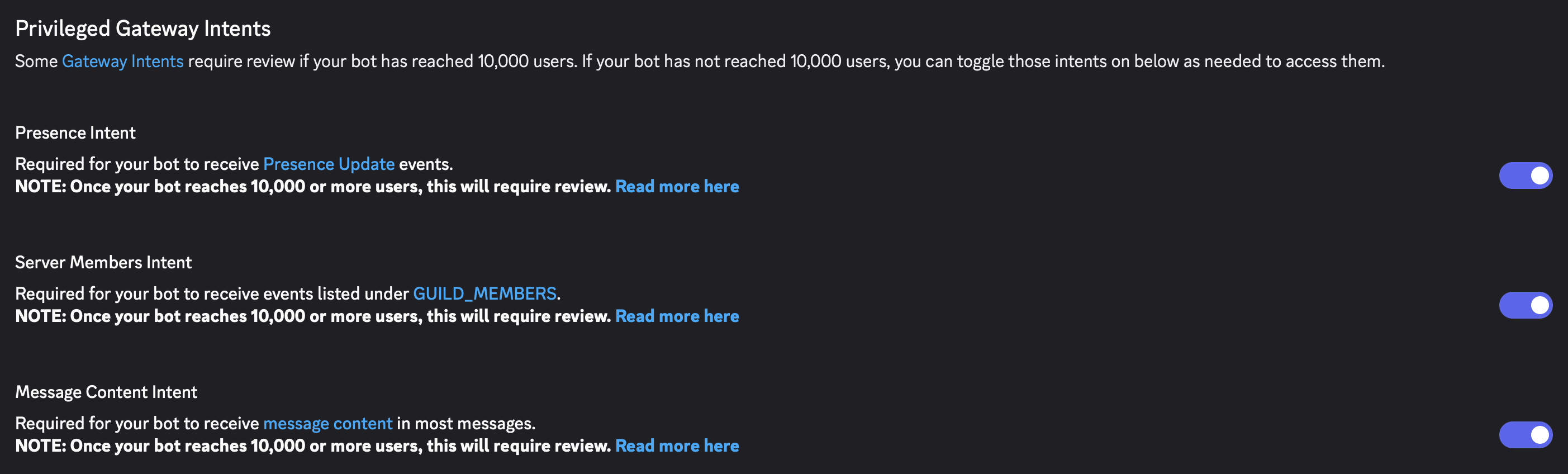
The same page has Privileged Gateway Intents further down. Turn on the ones your bot needs. Discord only reviews these once your app reaches more than 10,000 users.
Discord closes the connection when your code asks for one of these without the switch turned on here, and discord.js reports it as Used disallowed intents.
| Switch | What it covers |
|---|---|
| Presence Intent | who is online and what they are playing |
| Server Members Intent | member joins, leaves, nickname and role changes |
| Message Content Intent | the text of messages that do not mention your bot |
Copy the public key
Http only
A gateway bot needs no public key.
General Information carries your Public Key. Discord signs every request it posts to you, and your bot checks the signature against this key. Get the key wrong and every interaction fails that check, so Discord never accepts your endpoint URL in the first place.
The same page has an Interactions Endpoint URL field. Leave it empty. The dev server sets it for you later.
Add the bot to a server
Open Installation.
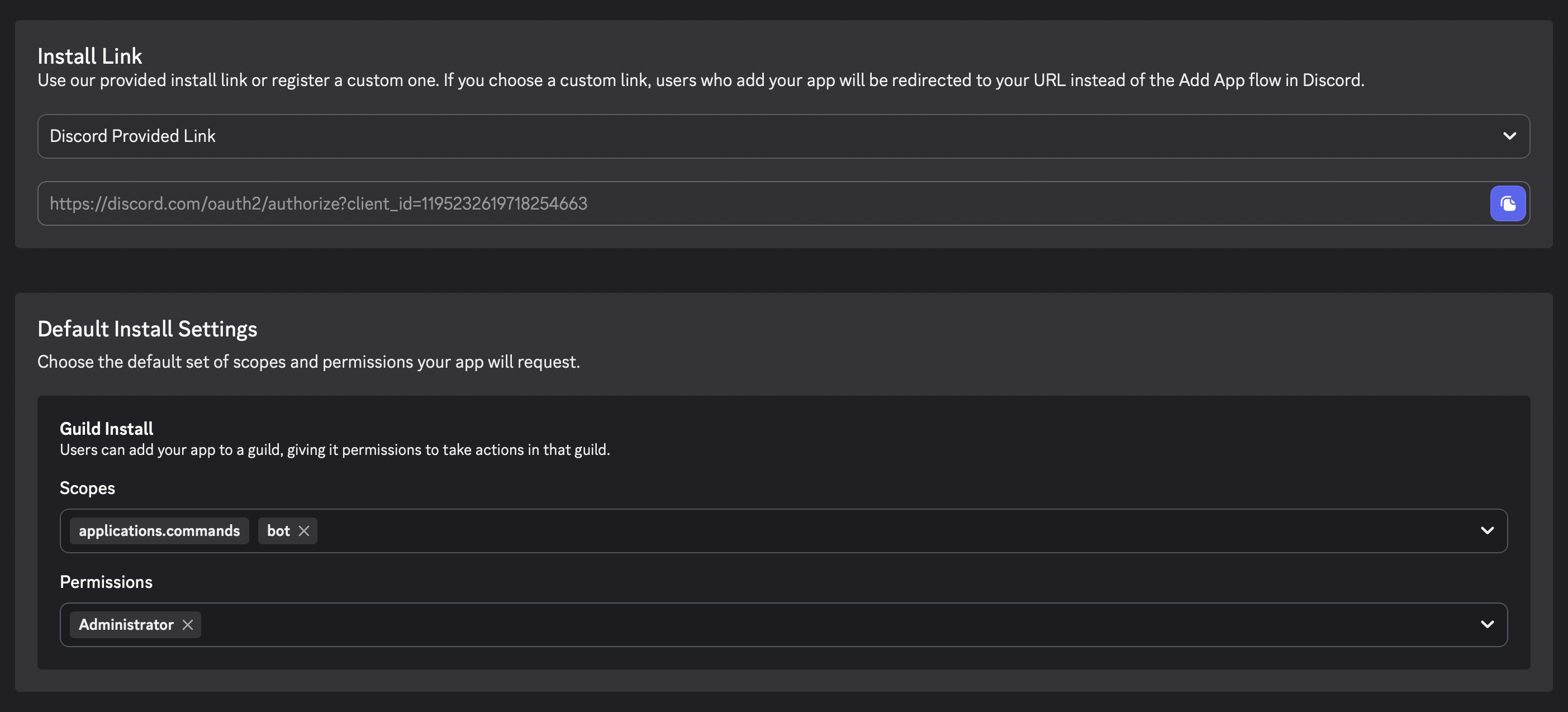
Under Installation Contexts, tick Guild Install. That's the one that puts your bot in a server. User Install puts it on a person's account.

Under Default Install Settings, pick the permissions your bot needs. applications.commands and bot are already in the scopes, and applications.commands can't be removed.
Copy the URL under Install Link and open it. Pick your server and confirm.
Warning
Adding a bot to a server needs the Manage Server permission in that server.